Saturday, 27 January 2018

Servers computer

(ser´ver) (n.) A server is a type of computer or device on a network that manages network resources. Servers are often dedicated, meaning that they perform no other tasks besides their server tasks. On multiprocessing operating systems, however, a single computer can execute several programs at once. A server in this case could refer to the program that is managing resources rather than the entire computer.

Different Types of Servers

Different types servers do different jobs, from serving email and video to protecting internal networks and hosting websites. There are many different types of servers, for example:

Top 5 Server Definitions to Know

1. What is a Web server?

Web servers are computers that deliver (or serve up) Web pages. Every Web server has an IP address and possibly a domain name. There are many Web server software applications, including public domain software and commercial packages.

2. What is a proxy server?

A proxy server is a server that sits between a client application, such as a Web browser, and a real server. Proxy servers have two main purposes: to improve performance and to filter requests.

3. What is a dedicated server?

A dedicated server is a single computer in a network reserved for serving the needs of the network. For example, some networks require that one computer be set aside to manage communications between all the other computers.

4. What is an application server?

An application server is a program that handles all application operations between users and an organization's back-end business applications or databases. This type of server is typically used for complex transaction-based applications.

5. What is a cloud server?

Cloud servers are services made available to customers on demand via the Internet. Rather than being provided by a single server or virtual server, cloud server hosting services are provided by multiple connected servers that comprise a cloud.

What is a Host ID? How do I find my Host ID in order to activate my license?

Host ID is a a specific piece of information which uniquely identifies a computer. Host IDs are used to generate MATLAB license files, which are machine-specific. Most of the time, the host ID is the lowest-enumerated MAC address of the computer. However, there are exceptions to this:
  • With an individual license on a Windows machine, the Volume Serial Number of the C: drive can be used as the host ID.
  • With network licenses, the IP address can be used as the host ID. This is not recommended, as IP addresses can change due to external factors.
To find your Host ID, follow the instructions below for your operating system.
Windows
For individual licenses, the Host ID can be either the Volume Serial Number of the C: drive, or the MAC address of the network adapter.
To obtain the volume serial number, open a Windows command prompt and run the following command:
vol c:
The Volume Serial Number is the value listed at the end of the second line of output (e.g. "Volume Serial Number is 1234-ABCD")
For Network Concurrent or Network Named User licenses, the MAC address must be used as the Host ID. Additionally, computers with a B: drive must use the MAC address as the host ID.
To obtain the MAC address, open a Windows command prompt and run the following command:
getmac
If this produces multiple MAC addresses, use the one at the top of the list.
MacOS
For MacOS, the Host ID is the MAC address of the en0 device.
To obtain the MAC address of the en0 device, start by opening a Terminal window:
  • Open Finder
  • Open the "Applications" folder
  • Open the "Utilities" folder
  • Start the "Terminal" application
In the Terminal window, enter the following command:
ifconfig en0 | grep ether
The MAC address is the value listed next to "ether".
Linux
With R2014a and later, any MAC address can serve as the host ID regardless of interface name. If the interfaces are enumerated, use the lowest-enumerated interface.
To obtain the MAC address using a bash shell, run the following command:
/sbin/ifconfig <interfaceName>
Where <interfaceName> is the name of the network interface. For example, en0, eth0, wlan0, or enp5s0 are common Linux network interface names, although this will vary from computer to computer.
For R2013b and earlier, the Host ID is the MAC address of the eth0 or en0 interface.
To obtain the MAC Address using a bash shell, run the following command:
/sbin/ifconfig eth0
or
/sbin/ifconfig eth1
The MAC Address is usually the value listed next to "HWaddr". If your Linux distribution does not have network interfaces which follow the enX or ethX naming scheme, you will either need to update to MATLAB R2014a or later, or change the name of your interfaces so MATLAB can detect them. Consult your distribution's documentation for instructions on changing the network interface naming scheme.

Wednesday, 24 January 2018

IP

An Internet Protocol address (IP address) is a logical numeric address that is assigned to every single computer, printer, switch, router or any other device that is part of a TCP/IP-based network.

The IP address is the core component on which the networking architecture is built; no network exists without it. An IP address is a logical address that is used to uniquely identify every node in the network. Because IP addresses are logical, they can change. They are similar to addresses in a town or city because the IP address gives the network node an address so that it can communicate with other nodes or networks, just like mail is sent to friends and relatives.

The numerals in an IP address are divided into 2 parts:

The network part specifies which networks this address belongs to and
The host part further pinpoints the exact location.

What is Random-Access Memory?

What is Random-Access Memory?

Random-access memory (RAM) is a type of computer data storage. A RAM
device makes it possible to access data in random order, which makes it very fast to find a specific piece of information. Certain other types of storage are not random-access. For example, a hard disk drive and a CD will read and write data in a predetermined order. The mechanical design of these devices prescribes that data access is consecutive. This means that the time it takes to find a specific piece of information can vary greatly depending on where it is located on the disk.
RAM devices are used in computer systems as the main memory. RAM is considered volatile memory, which means that the stored information is lost when there is no power. So, RAM is used by the central processing unit (CPU) when a computer is running to store information that it needs to be used very quickly, but it does not store any information permanently.
Present-day RAM devices use integrated circuits to store information. This is a relatively expensive form of storage and the cost per unit of storage is much higher than for devices like a hard drive. However, the time to access data is so much faster for RAM that speed outweighs cost. A computer, therefore, uses a certain amount of RAM for fast-access, temporary storage of information and a much larger amount of non-random, permanent mass storage, like a hard disk drive. For example, a typical computer system may have two to eight GB (gigabytes) of RAM, while the storage capacity of the hard disk drive can be several hundred GB or even one TB (terabyte).

A Bit of History

The earliest form of RAM goes back to the very first computers in the 1940s. Magnetic-core memory relied on an array of magnetized rings. Data could be stored by magnetizing each ring individually. Each ring was wired separately, which resulted in fairly large installations. A single ring could store a single bit of data and the direction of magnetization indicated zero or one.
Technological advances resulted in smaller devices that could store more information but relied on the same principle. The memory unit in the photograph below is about 10 x 10 cm and can store 1,024 bits. That is very small by today's standards, but it was state-of-the-art in the 1960s.
The real breakthrough for computer memory came in the 1970s with the invention of solid-state memory in integrated circuits. This uses very small transistors, making it possible to store a lot more information on a very small area. However, this increase in memory density came at the cost of volatility: a constant power supply is needed to maintain the state of each transistor. Today's RAM still relies on this same principle.

Network ID

A network ID refers to a part of a TCP/IP address that is used to identify the subnet that a host may be on. The subnet that the computer is on is determined by the netmask and IP address of the computer. This subnet address is the same as the network ID and is the beginning part of the computers IP address.

When the netmask is setup, it is a number where some of the most significant bits have a 1's value and the rest have values of 0. The most significant part of the netmask with bits set to 1's specifies the network address, and the lower part of the address will specify the host address.

The part of the IP address that matches the part of the netmask where the bits are set to ones determines the network ID.

Uses of Computer Networks

Uses of Computer Networks

Had it not been of high importance, nobody would have bothered connecting computers over a network. Let's start exploring the uses of Computer Networks with some traditional usecases at companies and for individuals and then move on to recent developments in the area of mobile users and home networking.

Business Applications

  • Resource Sharing: The goal is to make all programs, equipments, and especially data, available to anyone on the network without regard to the physical location of the resource and the user.
  • Server-Client model: One can imagine a company's information system as consisting of one or more databases and some number of employees who need to access them remotely. In this model, the data is stored on powerful computers called servers. Often these are centrally housed and maintained by a system administrator. In contrast, the employees have simple machines, called clients, on their desks, with which they access remote data.
  • Communication Medium: A computer network can provide a powerful communication medium among employees. Virtually every company that has two or more computers now has e-mail (electronic mail), which employees generally use for a great deal of daily communication
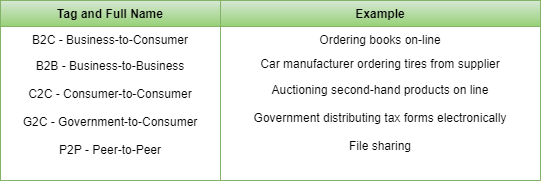
  • E-Commerce: A goal that is starting to become more important is doing business with consumers over the Internet. Airlines, bookstores and music vendors have discovered that many customers like the convenience of shopping from home. This sector is expected to grow quickly in the future. The most popular forms are listed in the below figure:
Uses of Computer Networks

Home Applications

Some of the most important uses of the Internet for home users are as follows:
  • Access to remote information
  • Person-to-person communication
  • Interactive entertainment
  • Electronic commerce

Mobile Users

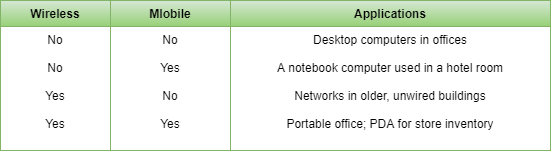
Mobile computers, such as notebook computers and Mobile phones, are one of the fastest-growing segments of the computer industry. Although wireless networking and mobile computing are often related, they are not identical, as the below figure shows.
Uses of Computer Networks

Introduction To Computer Networks

Introduction To Computer Networks

Modern world scenario is ever changing. Data Communication and network have changed the way business and other daily affair works. Now, they highly rely on computer networks and internetwork.
A set of devices often mentioned as nodes connected by media link is called a Network.
A node can be a device which is capable of sending or receiving data generated by other nodes on the network like a computer, printer etc. These links connecting the devices are called Communication channels.
Computer network is a telecommunication channel using which we can share data with other coomputers or devices, connected to the same network. It is also called Data Network. The best example of computer network is Internet.
Computer network does not mean a system with one Control Unit connected to multiple other systems as its slave. That is Distributed system, not Computer Network.
A network must be able to meet certain criterias, these are mentioned below:
  1. Performance
  2. Reliability
  3. Scalability

Performance

It can be measured in the following ways :
  • Transit time : It is the time taken to travel a message from one device to another.
  • Response time : It is defined as the time elapsed between enquiry and response.
Other ways to measure performance are :
  1. Efficiency of software
  2. Number of users
  3. Capability of connected hardware

Reliability

It decides the frequency at which network failure take place. More the failures are, less is the network's reliability.

Security

It refers to the protection of data from any unauthorised user or access. While travelling through network, data passes many layers of network, and data can be traced if attempted. Hence security is also a very important characteristic for Networks.

Properties of a Good Network

  1. Interpersonal Communication : We can communicate with each other efficiently and easily. Example: emails, chat rooms, video conferencing etc, all of these are possible because of computer networks.
  2. Resources can be shared : We can share physical resources by making them available on a network such as printers, scanners etc.
  3. Sharing files, data : Authorised users are allowed to share the files on the network.

Basic Communication Model

A Communication model is used to exchange data between two parties. For example: communication between a computer, server and telephone (through modem).
Basic Communication Model

Source

Data to be transmitted is generated by this device, example: telephones, personal computers etc.

Transmitter

The data generated by the source system is not directly transmitted in the form its generated. The transmitter transforms and encodes the data in such a form to produce electromagnetic waves or signals.

Transmission System

A transmission system can be a single transmission line or a complex network connecting source and destination.

Receiver

Receiver accepts the signal from the transmission system and converts it into a form which is easily managed by the destination device.

Destination

Destination receives the incoming data from the receiver.

Data Communication

The exchange of data between two devices through a transmission medium is called Data Communication. The data is exchanged in the form of 0's and 1's. The transmission medium used is wire cable. For data communication to occur, the communication device must be a part of a communication system. Data Communication has two types - Local and Remote which are discussed below:

Local

Local communication takes place when the communicating devices are in the same geographical area, same building, or face-to-face etc.

Remote

Remote communication takes place over a distance i.e. the devices are farther. The effectiveness of a data communication can be measured through the following features :
  1. Delivery: Delivery should be done to the correct destination.
  2. Timeliness: Delivery should be on time.
  3. Accuracy: Data delivered should be accurate.

Components of Data Communication

  1. Message: It is the information to be delivered.
  2. Sender: Sender is the person who is sending the message.
  3. Receiver: Receiver is the person to whom the message is being sent to.
  4. Medium: It is the medium through which the message is sent. For example: A Modem.
  5. Protocol: These are some set of rules which govern data communication.

Motherboard: Definition

Motherboard: Definition
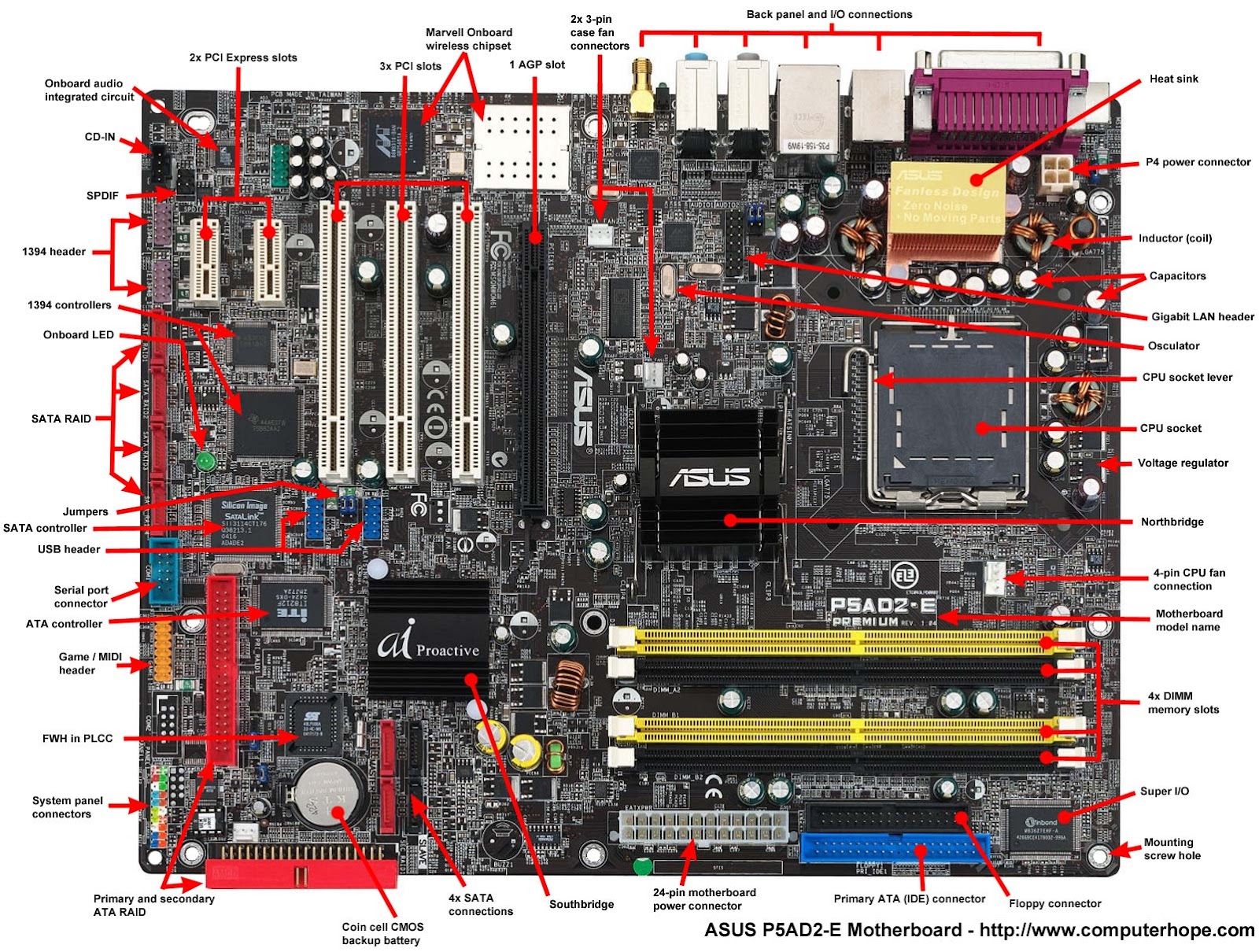
A motherboard is one of the most essential parts of a computer system. It holds together many of the crucial components of a computer, including the central processing unit (CPU), memory and connectors for input and output devices. The base of a motherboard consists of a very firm sheet of non-conductive material, typically some sort of rigid plastic. Thin layers of copper or aluminum foil, referred to as traces, are printed onto this sheet. These traces are very narrow and form the circuits between the various components. In addition to circuits, a motherboard contains a number of sockets and slots to connect the other components.
A CPU socket - the actual CPU is directly soldered onto the socket. Since high speed CPUs generate a lot of heat, there are heat sinks and mounting points for fans right next to the CPU socket.
A power connector to distribute power to the CPU and other components.
Slots for the system's main memory, typically in the form of DRAM chips.
A chip forms an interface between the CPU, the main memory and other components. On many types of motherboards, this is referred to as the Northbridge. This chip also contains a large heat sink.
A second chip controls the input and output (I/O) functions. It is not connected directly to the CPU but to the Northbridge. This I/O controller is referred to as the Southbridge. The Northbridge and Southbridge combined are referred to as the chipset.
Several connectors, which provide the physical interface between input and output devices and the motherboard. The Southbridge handles these connections.

Slots for one or more hard drives to store files. The most common types of connections are Integrated Drive Electronics (IDE) and Serial Advanced Technology Attachment (SATA).

A read-only memory (ROM) chip, which contains the firmware, or startup instructions for the computer system. This is also called the BIOS.

A slot for a video or graphics card. There are a number of different types of slots, including the Accelerated Graphics Port (AGP) and Peripheral Component Interconnect Express (PCIe).

Additional slots to connect hardware in the form of Peripheral Component Interconnect (PCI) slots.

Operating system software

Operating system software

An operating system is the most important software that runs on a computer. It manages the computer's memory and processes, as well as all of its software and hardware. It also allows you to communicate with the computer without knowing how to speak the computer's language. Without an operating system, a computer is useless.

Microsoft Windows

Microsoft created the Windows operating system in the mid-1980s. Over the years, there have been many different versions of Windows, but the most recent ones are Windows 10 (released in 2015), Windows 8 (2012), Windows 7 (2009), and Windows Vista (2007). Windows comes pre-loaded on most new PCs, which helps to make it the most popular operating system in the world.

Mac OS X

Mac OS is a line of operating systems created by Apple. It comes preloaded on all new Macintosh computers, or Macs. All of the recent versions are known as OS X (pronounced O-S Ten), and the specific versions include El Capitan (released in 2015), Yosemite (2014), Mavericks (2013), Mountain Lion (2012), and Lion (2011).

Linux

Linux (pronounced LINN-ux) is a family of open-source operating systems, which means they can be modified and distributed by anyone around the world. This is different from proprietary software like Windows, which can only be modified by the company that owns it. The advantages of Linux are that it is free, and there are many different distributions—or versions—you can choose from.

Storage type

Storage type

Virtual Storage

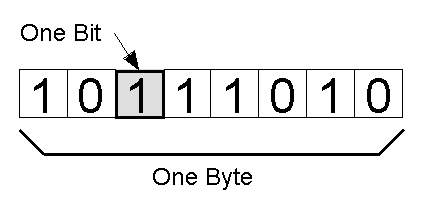
1 Bit = Binary Digit
8 Bits = 1 Byte
1024 Bytes = 1 Kilobyte
1024 Kilobytes = 1 Megabyte
1024 Megabytes = 1 Gigabyte
1024 Gigabytes = 1 Terabyte
1024 Terabytes = 1 Petabyte
1024 Petabytes = 1 Exabyte
1024 Exabytes = 1 Zettabyte
1024 Zettabytes = 1 Yottabyte
1024 Yottabytes = 1 Brontobyte
1024 Brontobytes = 1 Geopbyte
Disk Storage
1 Bit = Binary Digit
8 Bits = 1 Byte
1000 Bytes = 1 Kilobyte
1000 Kilobytes = 1 Megabyte
1000 Megabytes = 1 Gigabyte
1000 Gigabytes = 1 Terabyte
1000 Terabytes = 1 Petabyte
1000 Petabytes = 1 Exabyte
1000 Exabytes = 1 Zettabyte
1000 Zettabytes = 1 Yottabyte
1000 Yottabytes = 1 Brontobyte
1000 Brontobytes = 1 Geopbyte

Now let’s go into a little more detail.

Bit:
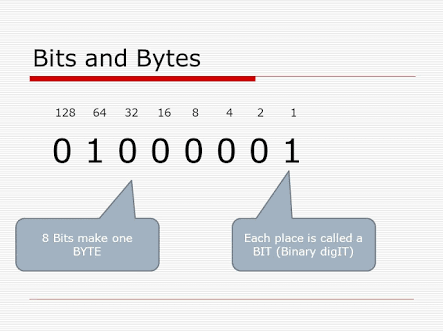
A Bit is the smallest unit of data that a computer uses. It can be used to represent two states of information, such as Yes or No.

Byte:
A Byte is equal to 8 Bits. A Byte can represent 256 states of information, for example, numbers or a combination of numbers and letters. 1 Byte could be equal to one character. 10 Bytes could be equal to a word. 100 Bytes would equal an average sentence.

Kilobyte:
A Kilobyte is approximately 1,000 Bytes, actually 1,024 Bytes depending on which definition is used. 1 Kilobyte would be equal to this paragraph you are reading, whereas 100 Kilobytes would equal an entire page.

Megabyte:
A Megabyte is approximately 1,000 Kilobytes. In the early days of computing, a Megabyte was considered to be a large amount of data. These days with a 500 Gigabyte hard drive on a computer being common, a Megabyte doesn’t seem like much anymore. One of those old 3-1/2 inch floppy disks can hold 1.44 Megabytes or the equivalent of a small book. 100 Megabytes might hold a couple volumes of Encyclopedias. 600 Megabytes is about the amount of data that will fit on a CD-ROM disk.

Gigabyte:
A Gigabyte is approximately 1,000 Megabytes. A Gigabyte is still a very common term used these days when referring to disk space or drive storage. 1 Gigabyte of data is almost twice the amount of data that a CD-ROM can hold. But it’s about one thousand times the capacity of a 3-1/2 floppy disk. 1 Gigabyte could hold the contents of about 10 yards of books on a shelf. 100 Gigabytes could hold the entire library floor of academic journals.

Terabyte:
A Terabyte is approximately one trillion bytes, or 1,000 Gigabytes. There was a time that I never thought I would see a 1 Terabyte hard drive, now one and two terabyte drives are the normal specs for many new computers. To put it in some perspective, a Terabyte could hold about 3.6 million 300 Kilobyte images or maybe about 300 hours of good quality video. A Terabyte could hold 1,000 copies of the Encyclopedia Britannica. Ten Terabytes could hold the printed collection of the Library of Congress. That’s a lot of data.

Petabyte:
A Petabyte is approximately 1,000 Terabytes or one million Gigabytes. It’s hard to visualize what a Petabyte could hold. 1 Petabyte could hold approximately 20 million 4-door filing cabinets full of text. It could hold 500 billion pages of standard printed text. It would take about 500 million floppy disks to store the same amount of data.

Exabyte:
An Exabyte is approximately 1,000 Petabytes. Another way to look at it is that an Exabyte is approximately one quintillion bytes or one billion Gigabytes. There is not much to compare an Exabyte to. It has been said that 5 Exabytes would be equal to all of the words ever spoken by mankind.

Zettabyte:
A Zettabyte is approximately 1,000 Exabytes. There is nothing to compare a Zettabyte to but to say that it would take a whole lot of ones and zeroes to fill it up.

Yottabyte:
A Yottabyte is approximately 1,000 Zettabytes. It would take approximately 11 trillion years to download a Yottabyte file from the Internet using high-power broadband. You can compare it to the World Wide Web as the entire Internet almost takes up about a Yottabyte.

Brontobyte:
A Brontobyte is (you guessed it) approximately 1,000 Yottabytes. The only thing there is to say about a Brontobyte is that it is a 1 followed by 27 zeroes!

Geopbyte:
A Geopbyte is about 1000 Brontobytes! Not sure why this term was created. I’m doubting that anyone alive today will ever see a Geopbyte hard drive. One way of looking at a geopbyte is 15267 6504600 2283229 4012496 7031205 376 bytes!

How to Crack Windows 10 Password with Windows 10 Password Cracker

No.1: How to Crack Windows 10 Password with Windows 10 Password Cracker The first way I'd like to introduce is to hack Windows 10 pa...